Google Play for TV is coming soon. Until then, install Teal VPN on your TV as a direct download with the free Downloader app. It is the same Teal VPN, with the TV version built in.
What you need
- A TV or box with Android TV or Google TV (Android 8 or newer). For example Chromecast with Google TV, Google TV Streamer, NVIDIA SHIELD, or a Sony, TCL, Philips or Hisense TV with Google TV.
- A Teal VPN account. It’s free. You can make one on the TV, or in the Teal VPN app on your phone first.
- Your phone, to sign in by scanning a code. Not required, but much faster than typing with a remote.
Install Teal VPN on your TV
Install Downloader
On the TV open Google Play Store (on Google TV: Apps → Search for apps), search for Downloader and install the free app by AFTVnews.
Type the address
Open Downloader, allow what it asks the first time, select the address box and type:
download.tealvpn.com/androidChoose Go. Downloader fetches Teal VPN (about 110 MB).
Allow Downloader to install, once
Android asks whether Downloader may install apps. Choose Settings, turn Downloader on, and press Back.
Choose Install
When it’s done, choose Open. Teal VPN also appears in your apps row. You can delete the downloaded file in Downloader afterwards.
No switch to allow it on Google TV? Google TV hides it until developer mode is on. Go to Settings → System → About and select Android TV OS build seven times until it says you are a developer. Then Settings → Apps (on some TVs Privacy) → Security & restrictions → Unknown sources and turn on Downloader.
Sign in with your phone
Open Teal VPN and choose Sign in
The TV shows a QR code and a short code like BCDF-GHJK.
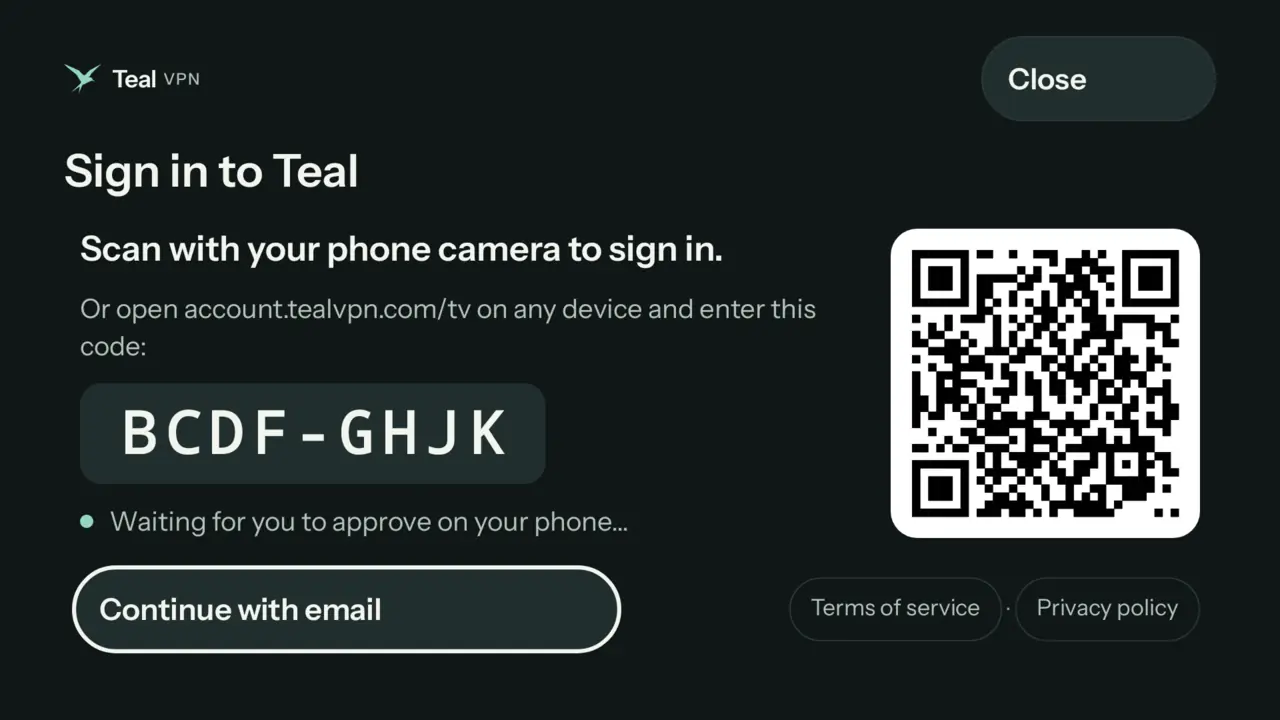
Scan the QR with your phone camera
Your phone opens account.tealvpn.com/tv with the code already filled in. Sign in there if it asks (email code, Google or Apple).
Choose Approve
Check it’s your TV, then approve. Within a few seconds the TV says “Approved. Signing in…” and opens Teal VPN.
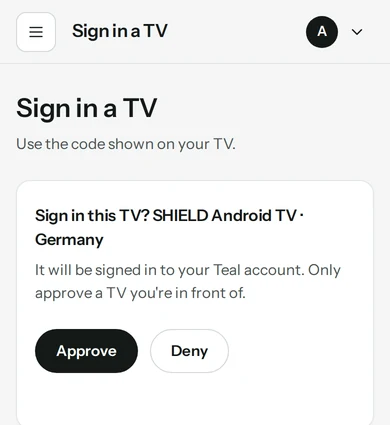
No phone camera? Open account.tealvpn.com/tv on any phone or computer and type the code from the TV. You can also choose Continue with email on the TV.
Connect
Press Connect
It’s the first button on the Teal VPN home screen.
The first time, choose OK
Android asks once whether Teal VPN may set up a VPN connection. This is Android’s standard question for every VPN app. Choose OK.
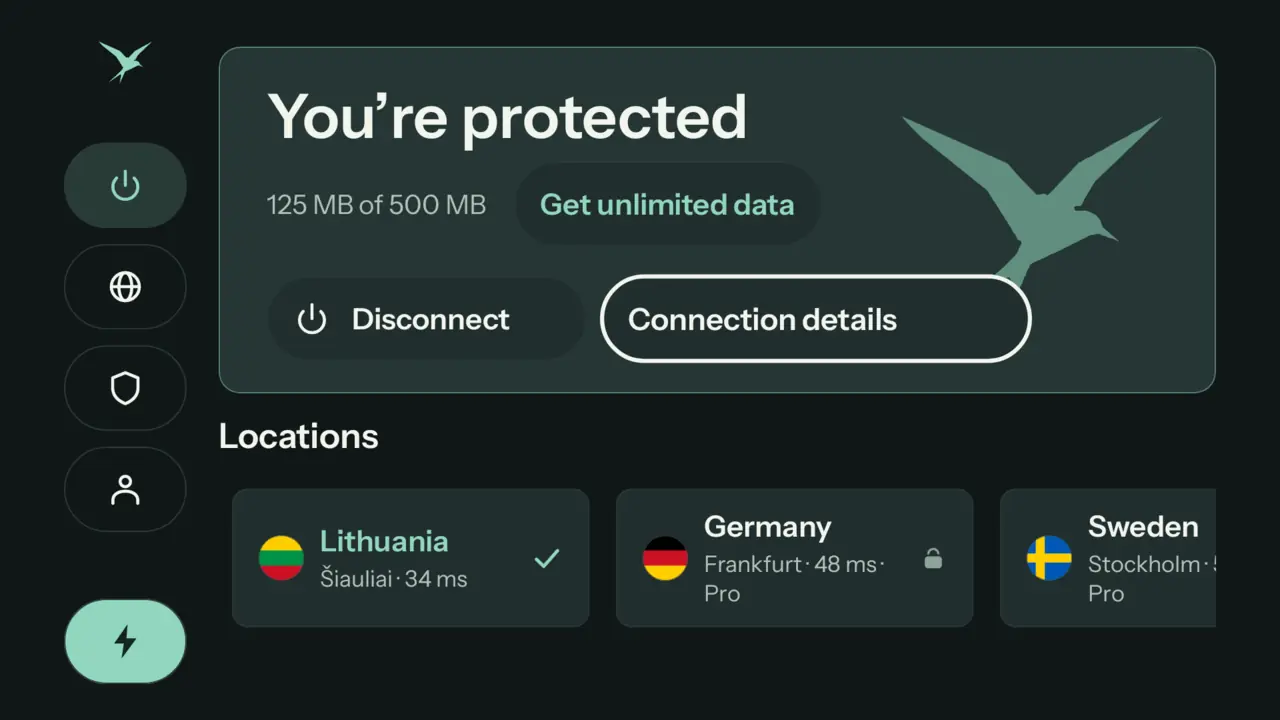
To disconnect, open Teal VPN and press the same button again.
Choose a location
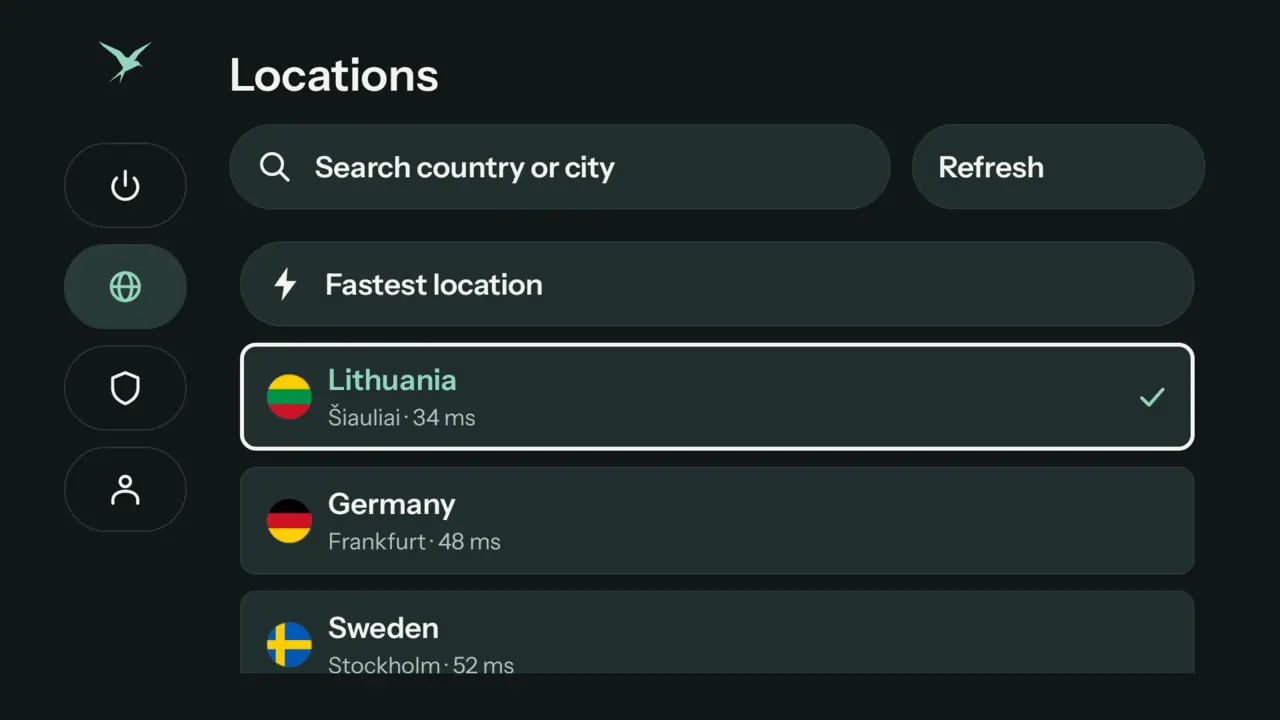
Press left on the remote to open the menu and choose Locations. There are six: Lithuania, Germany, Sweden, the United States, Japan and Singapore. Pick one and Teal VPN connects there. Teal Free includes Lithuania; Teal Pro opens all six.
Good to know
- Video uses a lot of data. HD video can use 1–3 GB an hour, so the Free plan’s daily allowance runs out fast on a TV. Teal Pro has no daily limit.
- Block ads and trackers is on Teal VPN’s Protection page (the shield in the menu) and in your account at account.tealvpn.com. It applies to all your devices.
- Your TV counts as one device on your plan, like a phone or a computer.
If something doesn’t work
| What you see | What to do |
|---|---|
| Teal VPN isn’t in Google Play on the TV | Not yet: Google Play for TV is coming soon. Install it with Downloader as shown above. The TV needs Android TV or Google TV, Android 8 or newer. |
| “Your TV is not allowed to install unknown apps” | Turn on Downloader under Unknown sources (see the tip under Install). On Google TV, turn on developer mode first. |
| Downloader says the address is wrong | Check the spelling: download.tealvpn.com/android, no spaces. The TV must be online. |
| “That code is wrong or has expired” | The code changes every 10 minutes. Use the one on the TV now, or scan the QR again. |
| Nothing happens after Approve | Give it a few seconds. If the TV still waits, check its internet connection, then choose Sign in again for a new code. |
| “Choose a device to replace” | Your plan’s devices are all in use. Pick one you no longer use right there on the TV, or remove it at account.tealvpn.com → Devices. |
| Connect fails | Try another location. If it keeps failing, write to us with the TV’s model. |
Still stuck? Write to support@tealvpn.com. A person will answer.
Questions
Is Teal VPN free on Android TV?
Yes. The Free plan works on your TV with a daily data allowance and the free location. Teal Pro removes the daily limit and opens every location.
Is Teal VPN on Google Play for TV?
Not yet, it is coming soon. Until then, download.tealvpn.com/android is the same Teal VPN with the TV version built in, installed with the free Downloader app.
Does Teal Free work on every TV box?
Teal Free needs a certified TV or box that passes Google’s device check. Uncertified or rooted boxes may only get Teal Pro, which works everywhere.
Does Teal VPN work on Amazon Fire TV?
Not yet. Teal VPN for TV is made for TVs and boxes with Android TV or Google TV.
Can I use the same account on my phone and my TV?
Yes. Sign in with the same account and both devices share your plan. Each one counts as one of your plan’s devices.
Do I need to type my email with the remote?
No. Scan the code on the TV with your phone and approve. If you have no phone with a camera, open account.tealvpn.com/tv on any device and type the short code instead.
How do I remove my TV from my account?
Open account.tealvpn.com, go to Devices and choose Remove next to the TV. It is signed out and disconnected.